LCD industrial control screen is black when turned on

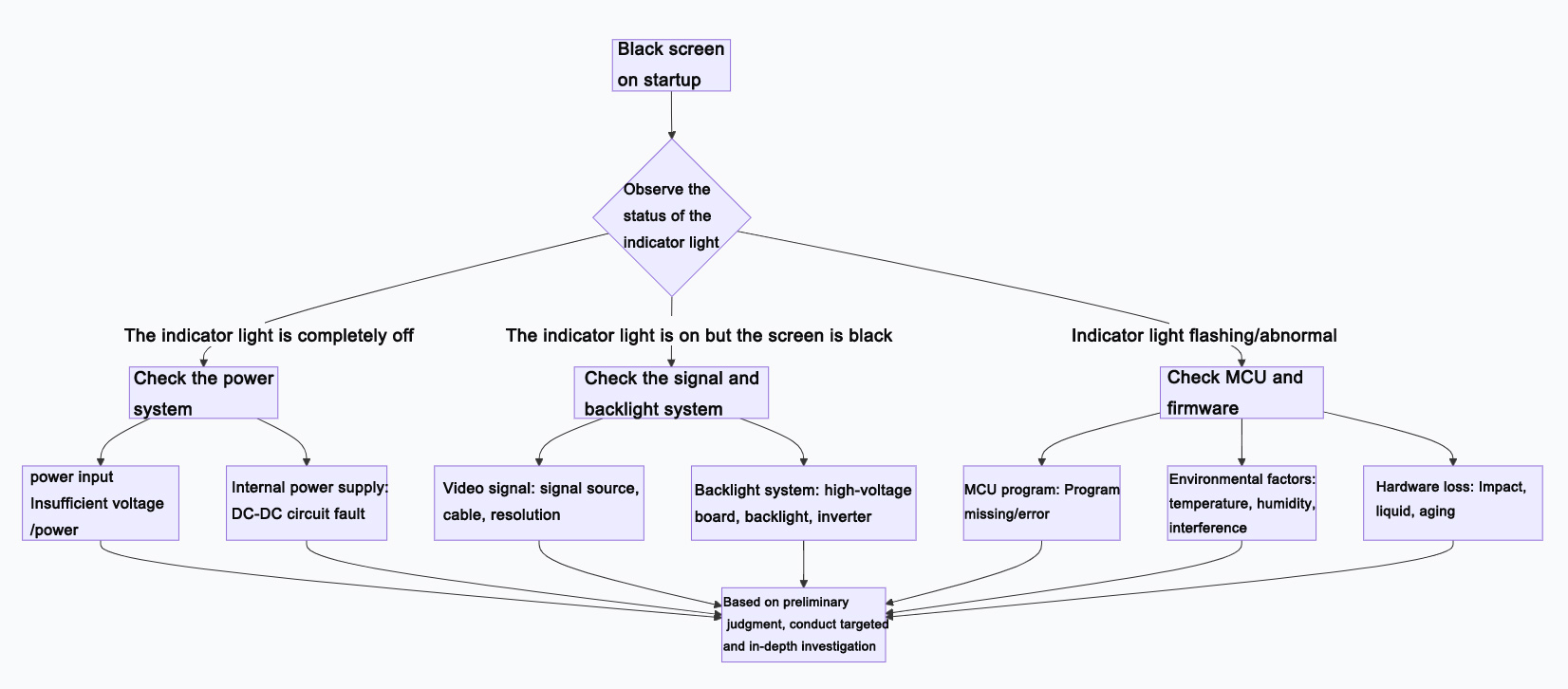
The reasons for a black screen upon startup of an LCD industrial control screen are complex Troubleshooting can begin with the aspects outlined in the figure below:
What could be the possible reasons for an LCD industrial control screen displaying a black screen upon startup?
The reasons for a black screen upon startup of an LCD industrial control screen are complex. Troubleshooting can begin with the aspects outlined in the figure below:
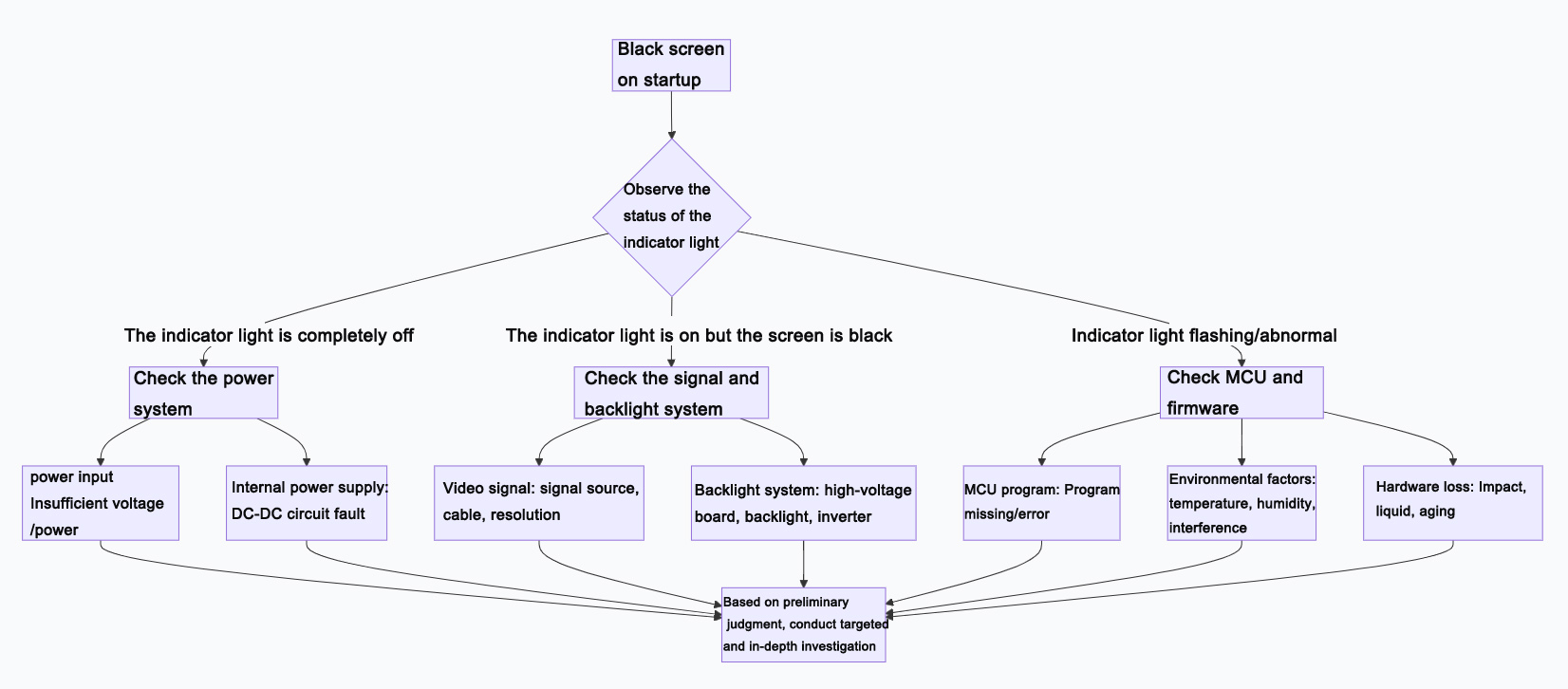
The following are specific troubleshooting guidelines:
1. Power system issue
External power supply: A faulty power adapter, unstable input voltage, or insufficient power (especially for certain screens that require a working current of 500mA to 700mA) may all lead to a black screen. A multimeter can be used to measure whether the port voltage and current meet the required standards.
Internal power supply: Common causes include damage to the power management chip (such as LM22673, APW7080), voltage regulator (such as 3.3V LDO), or protection diode on the motherboard. If the protection diode is broken down and short-circuited, it may temporarily light up after removal, but overvoltage must be prevented in the future.
2. Signal and connection issues
Video signal: Confirm whether the signal source output and resolution are within the support range of the industrial control screen. You can try replacing the host or signal cable for testing.
Internal connection: Loose, poor contact, or oxidized cables (such as the connection cable between the LCD and the motherboard) are common and often overlooked causes.
3. Backlight system issue
When the backlight is not working, the screen is not completely black; a faint image may be visible when viewed obliquely in a dark place. This issue is related to the aging or damage of the high-voltage board/backlight driver circuit (such as the backlight chip LM27313), the step-up transformer, the backlight tube, or the LED light bar.
4. Core board and firmware issues
MCU/main control chip: An abnormal working voltage (usually 5V), damage to the chip itself, or loss or error in its internal firmware/program may all lead to a non-boot or black screen.
Firmware issue: A mismatched or failed-to-upgrade kernel program may cause a black screen.
5. Environmental and physical damage
Common factors in industrial control environments, such as the infiltration of liquids (water, oil), corrosive gases, sustained intense vibrations, excessively high temperatures, or natural aging of components, can all directly or indirectly cause malfunctions.
External impact causes physical damage to the screen or internal components.
Suggested troubleshooting steps
It is recommended to follow the principle of "outside first, inside second; soft first, hard second; simple first, complex second":
1. Preliminary inspection: Observe the equipment indicator lights and check for any abnormal sounds or odors. Verify that all external connections (power cords, signal cables) are secure.
2. Basic testing: Use a multimeter to measure the power input voltage and current. Try replacing the device with a known-good power adapter for testing. Move the device to a suitable testing environment to eliminate the influence of factors such as excessively low temperature.
3. Internal investigation: If conditions permit and professional knowledge is available, conduct an open-box inspection to check for any bulges in internal wiring or capacitors, and any obvious signs of ablation on chips. Be cautious when handling as it is sensitive to static electricity.
4. Seek professional support: For complex issues involving high-voltage backlight circuits, chip-level repairs, or program programming, it is recommended to contact the device manufacturer or a professional repair technician.
Summary and Prevention
To reduce the occurrence of black screen failures on industrial control screens:
Environmental protection: Ensure proper sealing of equipment to prevent the intrusion of liquids, dust, and corrosive gases, and keep away from strong seismic sources and interference sources.
Power supply guarantee: Use a stable and reliable power supply to avoid significant fluctuations in voltage and current.
Standardize operations: Avoid unnecessary firmware upgrades, and ensure strict matching between files and models during upgrades.
If you wish to further understand the specific techniques for measuring whether the power supply is normal or determining whether the backlight is damaged, I can provide you with more detailed methods.
AUO LCD SCREEN:https://www.idtdisplay.com/products/AUO_LCD_Displays/
TFT LCD:https://www.idtdisplay.com/