How to determine if the driving signal of the LCD screen is normal?

How to determine if the driving signal of the LCD screen is normal?Judging whether the LCD screen drive signal
How to determine if the driving signal of the LCD screen is normal?
Judging whether the LCD screen drive signal is normal is the core step in troubleshooting display problems. The driving signal is the "command" that connects the host (signal source) and the screen. If it is not working properly, the screen cannot display correctly.
You can judge from two levels: "phenomenon inference" and "tool detection", and prioritize using the "phenomenon inference method" that does not require professional tools.
1.Phenomenon inference method (core method, suitable for everyone)
By observing a series of physiological reactions on the screen, the status of the driving signal can be basically determined.
Step 1: Confirm the premise - whether the host/signal source is normal?
This is the most crucial prerequisite. If the signal source itself has no output, all subsequent checks on the screen are meaningless.
Method: Connect your console (computer, game console, etc.) to another confirmed normal monitor or TV.
Result:
If the other monitor also has no signal, the problem is highly likely to be with the host/signal source, and the host graphics card, settings, etc. need to be checked.
If the other monitor is displaying normally and the host signal output is normal, the problem may lie in the original screen, connection cable, or interface. At this point, you can proceed to the next step and specifically check the original screen.
Step 2: Check the response of the target screen to the signal
After confirming that the host is functioning properly, connect back to the problematic screen and observe the following phenomena:
Observe the status of the screen indicator lights (important clues)
Normal situation: After connecting the host and turning it on, the indicator light usually changes from standby/orange to working/green/blue.
Abnormal situation:
The indicator light doesn't light up at all → Power issue (power cord, internal power board of the monitor).
The indicator light remains in standby color (orange) → The monitor has not received or recognized a valid drive signal. It considers itself 'idle', so it does not enter a working state. The problem may be in the signal line, interface, or driver board (signal processing part) inside the display.
The indicator light changes to the working color (green) but the screen goes black → This is a critical signal! It usually means: 'I (the monitor) received a signal, but there is a problem with the screen itself'. The problem may be in the backlight system or LCD panel.
Attempt to call out the built-in menu on the screen (decisive test)
Operation method: In the black screen state, press the MENU button on the monitor body.
Result judgment:
Can call up the menu and display it clearly → Congratulations! The driving signals (including power, data, and clock) are basically normal. The black screen issue can almost certainly be attributed to a malfunction in the backlight system (such as a broken light strip or driver circuit). Because menus are images generated by the screen itself and do not rely on host signals.
Completely unable to call out the menu → Even if the host signal line is disconnected, the menu cannot be displayed. This is usually a strong indication of complete damage to the internal driver board of the display, malfunction of the main control chip, or malfunction of the screen panel itself.
Menu display abnormality: such as flower screen, flashing screen, partial display, etc. → It may be a problem with the driver board, poor screen cable contact, or screen panel malfunction.
Using the "flashlight oblique illumination method" (confirmatory testing)
Operation method: When the screen is black but powered on, use a strong flashlight (phone flash) to approach the screen and shine from the side, carefully examining.
Result judgment:
You can see very dim desktop icons, mouse or text → the driver signal is normal, and the LCD panel is working, but the backlight is not on. 100% confirmed as backlight malfunction.
Completely unable to see any content, pitch black → judged by other phenomena. If the menu cannot be called out, it may be due to the driver board having no output, the screen cable being disconnected, or the LCD panel being completely damaged.
2. Tool detection method (suitable for those with electronic repair experience)
If more precise positioning is needed, tools can be used for measurement.
Measure the output voltage of the driver board with a multimeter
Measurement point: The connection cable socket from the screen driver board to the LCD panel and backlight strip.
Key voltage:
Main power supply (such as 3.3V, 5V, 12V): supplies power to the driver board chip and logic board. If not, it is a fault in the power supply of the driver board.
Panel power supply (VCC, usually 3.3V or 5V/12V): Provides power to the logic board of the LCD panel. If not, the panel cannot function.
Backlight turn-on voltage (BL-ON/OFF, approximately 3-5V) and backlight brightness adjustment voltage (PWM/AJ, variable 0-5V): These two signals come from the driver board and are used to control the backlight. If they are normal but the backlight is not on, the problem lies in the backlight strip or boost board; If they don't have voltage, the problem lies with the driver board.
Risk Warning: Non professionals are not allowed to operate! There is a high-voltage area (backlight circuit) on the driver board, and improper operation may damage the equipment or cause personal injury.
Use a display screen tester (commonly used by maintenance personnel)
This is a specialized tool that can simulate test signals of various resolutions and color modes (such as color bars, grids, and solid colors) output by the host.
Usage: Connect it directly to the driver board interface of the problematic LCD screen, bypassing the host and cable.
Judgment:
If the screen displays normally after connecting the tester → there is a problem with the original host or signal line.
If the screen is still abnormal after connecting the tester → there is a problem with the screen itself (driver board, screen cable, panel).
Summary and Quick Decision Process Diagram
You can refer to the following flowchart to make a systematic judgment:
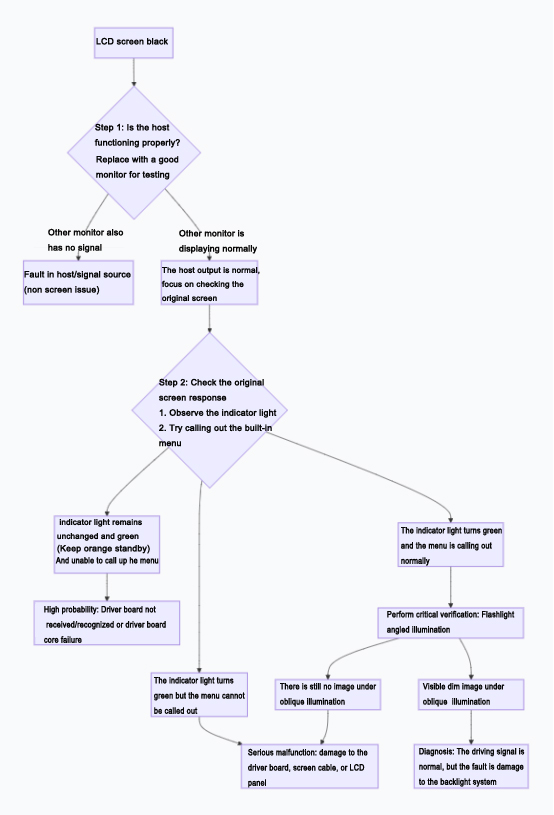
Key findings:
For ordinary users, the four step combination of "external display testing", "observing indicator lights", "calling out built-in menu", and "flashlight oblique illumination" can basically determine whether the drive signal is normal and the approximate range of faults without tools. If it is determined to be an internal hardware failure of the screen (such as backlight, driver board), it is recommended to send it for professional repair.