What causes the black screen phenomenon on the LCD screen?

LCD screen black screen is a common but troubling problem, with various reasons ranging from simple loose connections to complex hardware failures
What causes the black screen phenomenon on the LCD screen?
LCD screen black screen is a common but troubling problem, with various reasons ranging from simple loose connections to complex hardware failures. To systematically solve the problem, we can follow the idea of "from outside to inside, from simple to complex" for investigation.
I. The most common and easily identifiable reasons (with the highest proportion)
1. Power supply issue
Completely dead: power cord not plugged in properly, power outlet not powered, monitor power switch not turned on.
Notebook: The battery is completely depleted and the adapter is malfunctioning.
2. Signal connection issues (crucial for external displays/TVs)
Video cables (HDMI, DP, VGA, etc.) are loose, poorly connected, or damaged.
Wrong signal source connected: HDMI 1 is selected in the monitor menu, but the computer is connected to HDMI 2.
When the laptop is connected to an external monitor: the display mode is not switched correctly (such as only the second screen is displayed and the main screen is turned off).
3. Brightness setting issue
The screen brightness was unexpectedly set to the lowest (especially for laptops using shortcut keys).
The "power-saving mode" or "ambient light sensing" function is enabled, which automatically adjusts to too dark in low light.
II. Reasons related to the host/signal source
1. Computer host issues
Not starting properly: Check if the host fan and hard drive are running, and if the indicator lights are on. If the host itself does not start, the monitor will naturally have no signal.
Graphics card malfunction: Loose independent graphics card, oxidized or damaged golden fingers. You can try plugging the video cable into the motherboard integrated display interface (if the CPU has integrated display) for testing.
Memory/motherboard issues: causing inability to perform power on self-test and no video signal output.
2. Software/driver conflicts
Graphics card driver crash or improper installation: may cause a black screen after entering the system (but the mouse can be seen or the startup sound can be heard).
System updates or software conflicts: Some system updates or programs may cause display abnormalities.
III. Hardware malfunction of the LCD screen itself
This is the least desirable situation and usually requires professional repair.
1. Backlight system malfunction (the most common hardware malfunction)
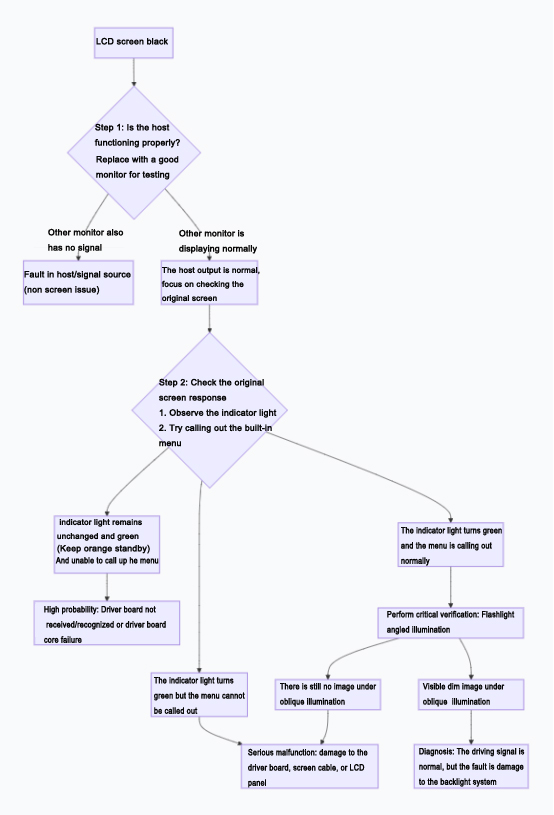
Phenomenon: The screen is "black", but when a flashlight is tilted towards the screen, a very faint image can be seen. This indicates that the liquid crystal layer and signal processing are normal, but the backlight strip (LED) or driver circuit responsible for illumination is broken.
Reason: The backlight strip is aging or burnt out, or the backlight driver circuit (high-voltage board/boost circuit) is damaged.
2. Screen driver board malfunction
The motherboard provides power and signals to the driver board, which is responsible for controlling the deflection of liquid crystal molecules and backlight. If it is damaged, it may result in no display at all, backlight not working, or black screen after blurred screen.
3. The screen itself (LCD panel) is damaged
Physical impact caused panel rupture and internal circuit breakage. Usually accompanied by cracks, leaks, or fixed bad spots/bright lines.
4. Loose or damaged internal wiring
In laptops or all-in-one computers, the screen cables (LVDS/eDP cables) connecting the motherboard and screen may become worn or loose due to long-term opening and closing, resulting in signal or power interruption.
IV. How to investigate step by step? (Self diagnostic process)
You can try in the following order:
1. Basic inspection:
Confirm that the power is connected and the switch is turned on (the display indicator light should be on).
Re plug and unplug the video and power cables at both ends.
Try increasing the brightness (shortcut keys or monitor menu).
Switch the signal source input mode of the monitor.
2. Determine if the host is functioning properly:
For desktop computers: listen to the sound of the chassis and see if the keyboard case indicator light can switch.
For laptops: Connect an external monitor, press Win+P to switch the display mode to "Copy" or "Second Screen Only", and check if the external monitor is working properly.
3. Determine whether it is a "backlight fault" or "completely no signal":
Key steps: In the black screen state, use a flashlight (phone flash) to approach the screen and shine from the side, carefully observing whether desktop icons, mice, or any very dim images can be seen.
Can see image → backlight malfunction. Need to repair the backlight strip or driver circuit.
Completely unable to see anything → It may be a problem with the driver board, screen cable, or signal.
4. Software testing:
Restart the computer and press F8 (old version of Windows) or enter safe mode during startup to see if it displays. If possible, it is likely a driver issue.
Enter safe mode to uninstall the graphics card driver, then restart the system to reinstall the basic driver for testing.
5. Hardware cross testing:
Desktop computer: Replace a good video cable and plug it into the motherboard integrated display interface for testing.
Replace another monitor or TV for testing to determine if it is a host or screen issue.
Summary and Recommendations
Phenomenon clues | Possible reasons | Solution direction |
The indicator light is not on. | Power supply issues (wires, sockets, switches) | Check the power circuit |
The indicator light is on (constantly on/flashing), but there is no display | Signal line, signal source, and host issues | Check the connection, switch signal sources, and test the host |
Slight image visible under oblique illumination | Backlight system malfunction | Professional maintenance is required |
There is a sound when starting up, but it is completely black | Graphics card driver/software issues, backlight failure | Perform safety mode troubleshooting and oblique lighting testing |
The external monitor is functioning properly | Laptop screen, screen cable or internal connection failure | Professional maintenance is required |
Completely unresponsive, and the host has no startup sound | Host hardware failure (memory, motherboard, power supply) | Maintenance host |
If the above basic troubleshooting still cannot solve the problem, especially when suspecting hardware faults such as backlight, screen cable or driver board, it is recommended to send it to professional maintenance personnel for handling. Non professionals should not disassemble the screen by themselves, especially when it involves backlight components. Improper operation may cause permanent damage to the screen or personal injury (there may be high voltage inside).