How to improve the contrast of LCD screen?

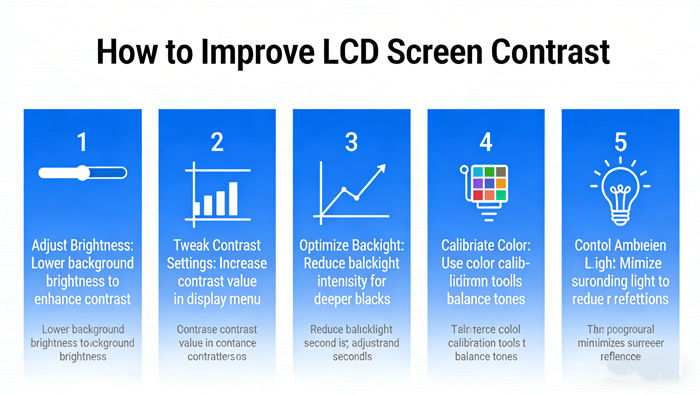
How to improve the contrast of LCD screens can be approached from two main aspects: software settings and hardware optimization
How to improve the contrast of LCD screens can be approached from two main aspects: software settings and hardware optimization. Here are some specific and actionable methods:
Software and system settings: easy to get started, with immediate results
This is the easiest method for ordinary users to operate, mainly by adjusting the settings of the monitor and system to optimize.
Adjust the On Screen Display (OSD) menu:
Manual adjustment: Use the physical buttons or joystick at the bottom of the monitor to manually adjust the contrast and brightness options in the On Screen Display (OSD) menu. You can refer to a simple "50-50 test method": let the screen display pure white and pure black images at the same time, and then adjust the contrast until the white is bright and not dazzling, and the black is deep and not graying, the most obvious difference between the two.
Enable dynamic contrast: Find and enable the dynamic contrast function in the monitor menu (different brands have different names, such as LG's DFC Sharp Technology and BenQ's Senseye Color Display Technology). After being turned on, the monitor will automatically optimize the contrast between light and dark according to the content of the screen, especially when playing movies, the effect is significant.
Using system calibration tools:
In Windows 10/11, you can directly search and open the "Calibrate Monitor Color" tool.
Following the on-screen prompts, the system will guide you step by step to adjust gamma, brightness, contrast, and color balance. In the step of adjusting contrast, the goal is to allow you to clearly see the folds and buttons of the character's shirt in the picture, while keeping the background clean and not turning white.
Attention: Before adjustment, please ensure that the monitor has been turned on and preheated for at least 30 minutes, and it is best to restore the factory settings once first.
Consider ambient lighting:
The contrast setting is not fixed. In bright environments, contrast and brightness can be appropriately increased to counteract the influence of ambient light; In darker environments, it should be appropriately lowered to obtain a more comfortable viewing experience.
Hardware and Design Principles: Improving from the Root
If your device allows it, or if you want to learn how to achieve better contrast from a hardware perspective, you can refer to the following methods.
Replacing with more efficient polarizing film: This is a very effective way to improve hardware contrast. The higher the efficiency of polarizing film, the more precise the control of light. For example, upgrading a regular polarizer to a high-end polarizer with an efficiency of up to 99.9% can even increase the contrast ratio from 45:1 to over 1000:1 for certain types of LCD screens (negative screens).
Accurate optimization of driving voltage: LCD panels have an optimal driving voltage point, at which their contrast performance is best. If the voltage is too low, the screen will appear dim; If the voltage is too high, pixels that should not be displayed may be "accidentally touched" and light up, resulting in "ghosting" and a decrease in contrast.
Adding temperature compensation for extreme environments: Liquid crystal materials are highly sensitive to temperature. When the temperature decreases, the LCD response slows down and the image may become blurry; When the temperature rises, ghosting may occur again. Some professional or industrial equipment will use temperature compensation circuits to adjust the driving voltage in real-time according to the ambient temperature, ensuring optimal contrast can be maintained at different temperatures.
Advanced tip: Properly view the "high contrast mode"
In the "Easy Use" or "Accessibility" settings of Windows, there is a high contrast mode. It should be noted that this feature is mainly designed to help visually impaired people see the screen content clearly. It forcibly replaces the screen color with a specific high contrast color scheme (such as black and white), and is not suitable for improving the picture quality experience when watching movies or editing images.
summary
In general, the methods to improve contrast can be summarized as follows:
Method category | Specific operations | Difficulty | Effect |
Software/System Settings | Manually adjust the OSD of the monitor and enable dynamic contrast | Simple | Significant effect, improving daily viewing experience |
System Calibration | Use Windows built-in calibration tool | Moderate | Professional effect, able to obtain more accurate color and contrast |
Hardware optimization | Replace polarizing film and optimize circuit design | Difficulty | The effect is significant, but it is usually completed by manufacturers or professionals |
I hope these methods can help you achieve more satisfactory display results. If you encounter any problems during operation or want to know the setting method of a specific brand, feel free to ask me again at any time
auo lcd display:https://www.idtdisplay.com/products/AUO_LCD_Displays/
innolux lcd display:https://www.idtdisplay.com/products/innolux-lcd/